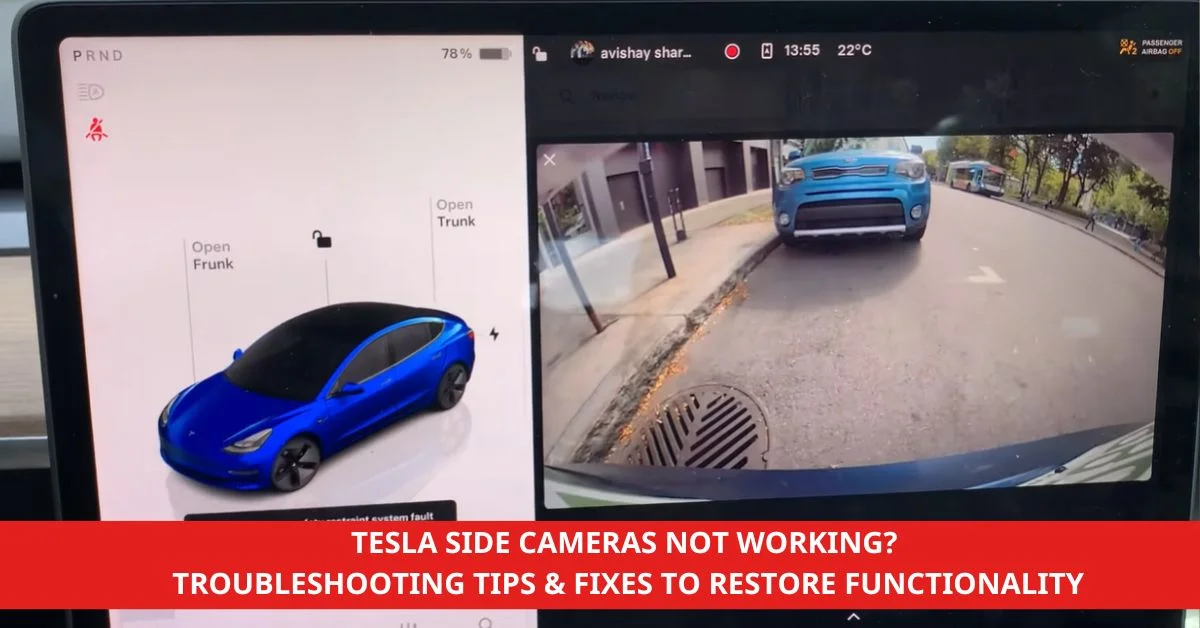
Tesla’s innovative technology has redefined the driving experience, but like any advanced system, it’s not without its quirks. One issue some of us have encountered is the side cameras not working as they should. These cameras play a crucial role in enhancing safety and providing a seamless driving experience, so it can be frustrating when they act up.
Common Reasons For Tesla Side Cameras Not Working
Tesla side cameras play a crucial role in enhancing safety and driver assistance. Understanding the reasons for their malfunction helps address the problem effectively.
Recommended Products
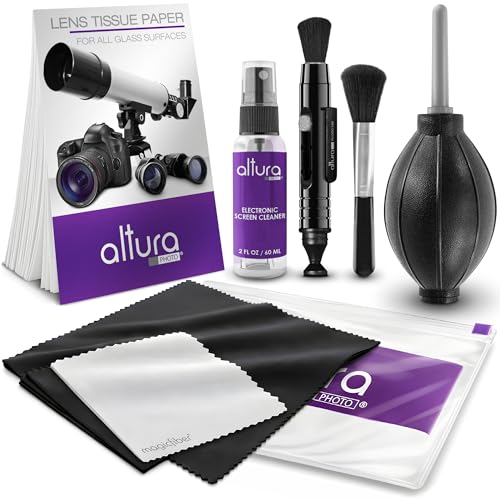
COMPLETE CAMERA CLEANING KIT: Our camera lens cleaning kit includes an alcohol & ammonia-free lens cleaner spray, cleaning brush, lens pen, air blower, MagicFiber microfiber cloths (3), and lens tissue paper wipes (50). Most competing lens cleaning kits cost more and still make you buy the spray and brush separately. Ours doesn't.

Camera Lens Cleaning Kit (14 pieces), including, air blower, lens pen, cleaning brush, lint-free cloth, lens pen, storage bag, etc.

Professional Camera Lens Cleaning Kit Includes: air blowing * 1, two in one cleaning pen * 1, brush * 1, beauty brush * 1, cleaning cloth * 5, lens paper * 20, cleaning rod * 4, detergent * 1, dry and wet bag *5, tweezers *1, storage box *1, cotton swab *5, instruction manual*1
Software Glitches
Software glitches can interfere with the proper functioning of Tesla side cameras. Outdated firmware or bugs in the current system can prevent the cameras from working correctly. Ensuring regular updates through the Tesla app can reduce these occurrences.
Obstructed Camera Lens
A dirty or blocked camera lens can result in Tesla side cameras not working as intended. Dust, mud, or snow buildup often obstructs the view. Cleaning the lenses with a microfiber cloth ensures optimal visibility.
Hardware Malfunctions
Internal hardware malfunctions can disrupt the operation of side cameras. Loose connections, water damage, or physical impact may lead to failures. Consulting Tesla service is the best option for diagnosing and repairing such issues.
Calibration Issues
Improper calibration impacts the alignment and functionality of Tesla side cameras. Misaligned settings after software updates or repairs may cause inaccuracies. Recalibrating the system via Tesla’s diagnostic tools resolves these alignment problems.
Materials And Tools Needed
Addressing issues with Tesla side cameras not working often requires specific tools and resources to identify and resolve the problem efficiently. Having the right materials helps streamline the troubleshooting process.
Recommended Products

OBD2 SCANNER & BATTERY TESTER IN ONE – The INNOVA 5210 OBD2 scanner not only reads and clears check engine light and ABS codes (coverage may vary) but also functions as a car battery tester to check alternator health and prevent unexpected breakdowns.

Your Car's Personal Doctor: Say Goodbye to Check Engine Light Troubles! The YM319 OBD2 scanner swiftly reads and clears engine fault codes, pinpointing the root cause of issues. Monitor your engine's every "breath" like a pro—view freeze frame data, check I/M readiness status, run oxygen sensor tests, and more. With a built-in database of over 63,000 fault codes, it delivers precise and reliable diagnostics, making it your trusted partner for vehicle maintenance and repair.
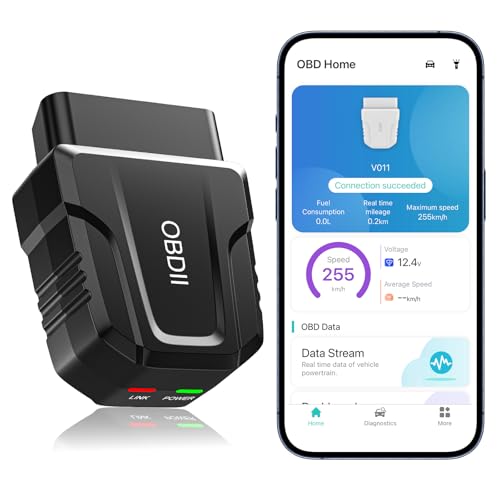
【Comprehensive Performance Testing】V011 OBD2 Scanner provides a complete diagnostic solution, giving you a thorough understanding of your vehicle's condition. It supports a variety of performance tests, support 9 protocols,👍automotive fault clearing,including fast reading of DTCs, access to electronic emission readiness, turning off CEL or MIL, resetting monitors, reading live data and retrieving the vehicle's VIN, freeze frame, sensor data, data streaming, diagnostic reports, onboard monitoring, live data streaming, and more. With these features, you can monitor your car's performance in real time and discover potential problems before they become major issues.
Cleaning Supplies
Clean lenses enhance the functionality of the side cameras. Use a microfiber cloth to remove dirt and smudges without scratching the lens. Include a non-abrasive glass cleaner for thorough cleaning, especially in dusty or humid environments.
Diagnostic Tools
Testing and troubleshooting camera issues require tools like an OBD-II scanner compatible with Tesla vehicles. This device identifies potential software or hardware faults related to the side cameras. For advanced diagnostics, access to Tesla’s service systems may be beneficial.
Tesla Mobile App
The Tesla mobile app allows direct interaction with the vehicle to verify camera functionality. Use it to restart systems, check for firmware updates, and recalibrate cameras remotely when malfunctions occur. It also simplifies communication with Tesla’s support team for further assistance.
Steps To Troubleshoot Tesla Side Cameras
Addressing issues with Tesla side cameras not working involves a systematic approach. By following these steps, we can resolve most common problems efficiently.
Recommended Products

【𝐖𝐡𝐚𝐭 𝐖𝐢𝐥𝐥 𝐘𝐨𝐮 𝐆𝐞𝐭】Navona eyeglass cleaning kit: 30 eyeglass cleaning cloths (6 of each in white, blue, gray, pink, orange) and 2 eyeglass spray bottles. Perfect for use at the office, at home, or on the go—enjoy clean, streak-free clarity anytime, with lenses refreshed like new.

LENS KIT INCLUDES: Pump atomizer with specially formulated Oakley cleaning solution, streak free lens cloth and ballistic storage case.

【 𝗙𝗨𝗟𝗟𝗬 𝗘𝗤𝗨𝗜𝗣𝗣𝗘𝗗 】1 * Screen Cleaner + 1 * VR Lens cleaning pen + 2 * Microfiber Screen Cleaner Cloth + 1 * Air Blower + 2 * gap cleaning stick + 25 * Clean Thin Tip + 2 * Clean brush + 8 * Clean wipes + 1 * Storage Box.
Step 1: Check For Software Updates
Verify the Tesla system is running the latest firmware version. Go to the touchscreen menu, select “Software,” and monitor for available updates. Installing updates ensures the side cameras function correctly, resolving known glitches or compatibility issues.
Step 2: Inspect And Clean The Camera Lenses
Examine the side camera lenses for dirt, debris, or moisture. Using a microfiber cloth and non-abrasive glass cleaner, gently clean the lenses. Avoid using abrasive materials to prevent scratches that could impair image quality.
Step 3: Reboot The Tesla System
Restart the Tesla system to resolve temporary software errors. Hold down both scroll wheels on the steering wheel until the screen turns black and restarts. This soft reboot often refreshes system components, including the side cameras.
Step 4: Perform A Factory Reset As A Last Resort
Restore factory settings if the side camera issues persist. Access “Service” in the settings menu, then select “Factory Reset.” Ensure personal settings are backed up before proceeding since this action resets the vehicle’s configurations to default.
By applying these steps, Tesla side cameras not working can often be resolved without professional assistance.
How To Test Camera Functionality
Testing the functionality of Tesla’s side cameras ensures they operate effectively and helps address issues promptly, such as when Tesla side cameras are not working.
Recommended Products
PROUDLY MADE IN THE USA: Invisible Glass is formulated, manufactured, and distributed in the USA. We use premium ingredients to deliver performance and reliability you can trust.

CAR & AUTO GLASS CLEANER: Cuts through fingerprints, smudges, grease, and road film on car windows and windshields. Dries streak-free with no residue.

NEW WINDEX AUTOMOTIVE: Windex Auto Spray Cleaner lets you drive in comfort and confidence at your convenience
Using The Tesla Mobile App
Accessing the Tesla mobile app provides a convenient way to test side cameras. Open the app on your smartphone and navigate to the “Service” section. Select “View Live Camera” or a similar option if available. Verify the live feed from the side cameras for any display issues or errors. This method can help identify whether the camera signal or a processing issue is causing problems.
Using The In-Car Display System
The in-car display system offers another reliable method for checking camera functionality. Open the vehicle’s settings on the center display, then go to the “Service” or “Cameras” menu. Enable the side-camera views manually and assess their performance. Check for dark screens, static images, or distorted visuals, as these could indicate malfunctions. This step is particularly useful if the Tesla mobile app does not show side-camera feeds.
When To Contact Tesla Support
If Tesla side cameras are not working after attempting basic troubleshooting steps, relying on Tesla Support ensures professional diagnosis and resolution.
Recommended Products
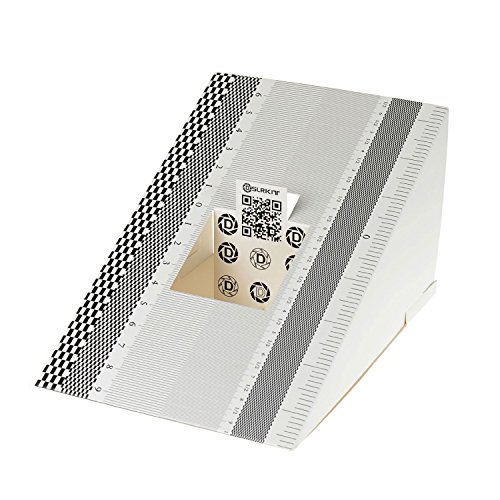
This compact ruler allows you to determine if your lens is auto-focusing accurately as it should. It is an essential tool that is particularly useful when shooting with a shallow depth of field, where focusing should ideally be "spot on".

Automatic stitching, convenient and efficient

1.Fit For: LDW ADAS calibration tool compatible with Benz,-Please confirm whether your car model match before purchasing
Persistent Issues Post-Troubleshooting
Persistent camera issues signal the need for Tesla Support. After ensuring the system is updated, lenses are clean, and a reboot has been executed, unresolved problems often indicate deeper software or system conflicts. In such cases, scheduling a service appointment through the Tesla mobile app connects users to specialized technical assistance.
Hardware Damage Or Malfunction
Physical damage or clear signs of hardware malfunction necessitate Tesla’s intervention. Cracked lenses, water ingress, or loose housing components compromise the performance of the side cameras. Tesla’s trained technicians are equipped to repair or replace these components, restoring the cameras’ functionality effectively.
Tips To Prevent Future Issues
Taking proactive measures can reduce the likelihood of encountering problems with Tesla’s side cameras. Consistent attention to maintenance and proper use ensures reliability over time.
Recommended Products

【6 Pieces of 16mm Sensor Cleaning Swabs】 Tailored according to the size of the APS-C frame frame sensor;Smudge-and lintfree, flexible grip rod allows the head to be close to the sensor without harm. The width of swab is 16mm and each swab is vacuum packaged.

【PROFESSIONAL LENS CLEANING KIT】:Dslr cleaning kit includes Camera Dust Blower*1, Lens Cleaning Pen*1, Microfiber Lens Cleaning Cloths*2. Safe for all electronics, coated lenses and sensors.

All-in-One Professional Cleaning Kit – Includes lens pen, microfiber cloths, swabs, and brush for comprehensive camera maintenance
Regular Maintenance And Cleaning
Clean side camera lenses regularly to prevent dirt, debris, or water spots from obstructing the view. Use a microfiber cloth with a non-abrasive glass cleaner for effective results. Periodic inspections of the camera housing protect against physical damage, such as cracks or signs of water ingress.
Keeping Software Up-To-Date
Keep the Tesla software current to maintain compatibility and ensure that all system features, including cameras, function properly. Enable automatic updates through the vehicle settings or check the Tesla mobile app for available firmware updates often. Updated software resolves bugs that can cause issues such as Tesla side cameras not working.
Avoiding Extreme Weather Damage
Protect the cameras from extreme weather by parking in sheltered areas during snow, heavy rain, or high heat. If exposure occurs, inspect both lenses and housing for signs of frost, fogging, or heat-related wear. Using weather-resistant covers may offer added protection in harsher climates.
Conclusion
Tesla’s side cameras are vital for a safe and enjoyable driving experience, so it’s important to address any issues promptly. By staying proactive with maintenance, keeping software updated, and using the tools and resources available, we can ensure these cameras perform at their best.
If problems persist after troubleshooting, reaching out to Tesla Support is always a smart move. Let’s remember that a little care and attention go a long way in keeping our Tesla running smoothly and safely.
Recommended Products

Easily Diagnose Car and Truck Issues from Your Phone – Scan and identify 39,000+ issues across thousands of vehicles, from Check Engine lights to enhanced codes. Validate repairs or vehicle condition and reset codes without being an expert.

【Diagnose Check Engine Light in Seconds – No Mechanic Needed】The FOXWELL NT301 OBD2 scanner instantly reads & clears engine fault codes (DTCs) with one click. Simply plug into the 16-pin DLC port, turn ignition on, and get accurate results within seconds—No prior car knowledge required. Save hundreds on dealership fees by knowing exactly what’s wrong before you visit a shop. The #1 choice car scanner for DIYers and car owners who want to take control of their vehicle’s health

Multi-Functions - Practical Multi-Functions OBD2 code reader features built-in OBD2 DTC lookup library, which help you to determine the cause of the engine light, read code, erase code, view freeze frame, I/M ready, vehicle information, data flow, real-time curve, get vehicle speed information, calculate load value, engine coolant temperature, get engine speed.