- Tesla connectivity issues often stem from weak signals, outdated software, hardware malfunctions, or account verification problems.
- Common symptoms include navigation glitches, app syncing errors, and interruptions in streaming services.
- Effective troubleshooting steps include checking network connectivity, rebooting the system, updating software, and verifying subscriptions.
- Advanced solutions, such as rebooting the MCU or performing a factory reset, may resolve persistent problems.
- Preventative measures, like keeping software updated and monitoring signal strength, help avoid future connectivity interruptions.
- Contacting Tesla Support is crucial for unresolved issues, especially those related to hardware malfunctions or deep system errors.
Owning a Tesla feels like stepping into the future, doesn’t it? From sleek designs to cutting-edge technology, these cars have redefined what we expect from driving. But as much as we love the innovation, there’s one issue that seems to pop up more often than we’d like—connectivity problems.
Whether it’s trouble with the app, navigation glitches, or streaming hiccups, these issues can be frustrating, especially when we rely so heavily on Tesla’s tech for a seamless experience. It’s not just about convenience; it’s about feeling connected to the car and the road ahead.
Let’s dive into what’s causing these connectivity headaches and explore what we can do to keep our Teslas running as smoothly as they’re designed to. After all, we’re here to make the most of this incredible technology, not let it slow us down.
Understanding Tesla Connectivity Issues
Tesla connectivity issues impact the functionality of several features like the mobile app, vehicle navigation, and media streaming. These challenges often stem from software bugs, unstable network connections, or compatibility problems with external devices.
- Network stability issues
Poor Wi-Fi or cellular coverage can disrupt vehicle connectivity. For example, weak signals in rural locations affect navigation updates and live traffic data.
- Software glitches
Outdated or faulty software versions contribute to malfunctions. Instances include app crashes or delayed vehicle status updates.
- Device syncing problems
Mobile devices with incompatible operating systems or app versions cause syncing errors. These errors may prevent features like remote unlocking from working correctly.
- Account verification issues
Problems arise when Tesla accounts are improperly set up or not linked correctly. Unverified accounts may limit control of vehicle settings.
- Server downtimes
Tesla’s servers occasionally experience outages, impacting connectivity features such as in-car entertainment or mobile app operability.
Understanding these root causes helps isolate specific connectivity issues and apply targeted solutions effectively.
Recommended Products

【Car Cell Phone Booster for All Carriers】Our car cell phone signal booster is compatible with all major US carriers, covering Verizon, AT&T, T-Mobile, Sprint, Straight Talk and other providers. When traveling through low-signal rural zones or remote highways, you no longer need to worry about unstable cellular service. All passengers in the vehicle can experience crisp calls, reduced call drops, faster mobile data and seamless video playback. This booster solves common signal pain points such as slow loading, frozen videos and sudden call disconnections, delivering reliable cell service for daily driving and long-distance road trips.

【Before Purchasing】-Please ensure your phone's frequency bands display band 12, 13, or 17 and that you receive at least 2 bars of signal outdoors. If not, the car cell phone booster may not function properly. (Check the product image for instructions on how to check frequency bands.)

Car Cell Signal Booster: Cell phone booster for rv work with all U. S. Carriers; Verizon, AT&T, T-Mobile, Sprint, Straight Talk, Cricket, U. S. Cellular etc. car signal booster provide best performance for enhancing 4G LTE 5G on Band 12/13/17, for less drop call In emergency, fast data transfer, keeping GPS going and connected on the road, signal no longer out of reach. Note: Please check band of your cell phone before buying and the signal booster can only amplify signal, can not create signal.
Common Causes Of Connectivity Problems
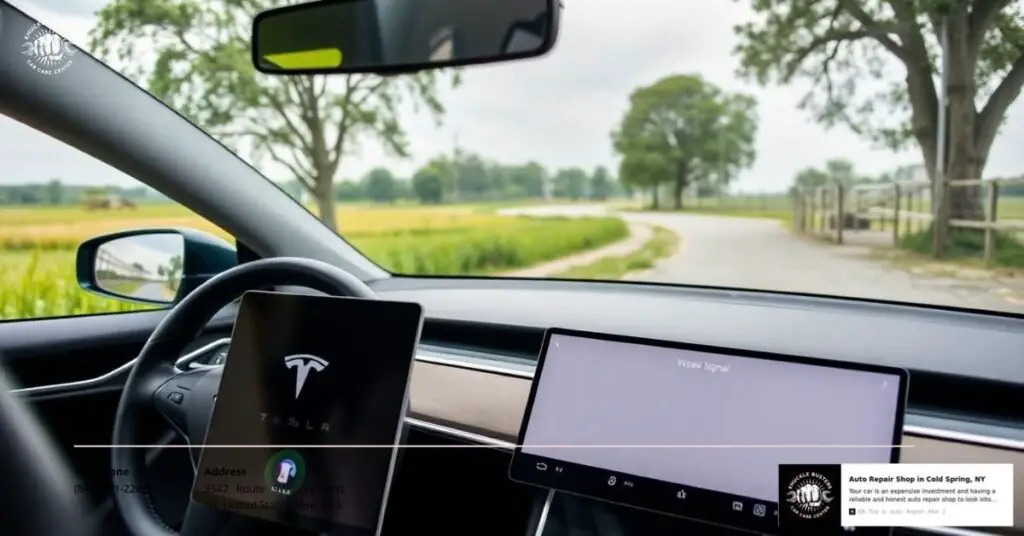
Connectivity issues in Tesla vehicles can result from various factors. Identifying the primary causes helps address these challenges effectively.
Recommended Products

Cellular antenna Frequency :700-2700MHZ |Polarization :Vertical |Impedance :50 Ohm

High-Gain 4G LTE Antenna: Boost signal with this 7dBi 698-2700MHz high gain 4g antenna. SMA male connector works for 4g router antenna, M2M gateway, and cell phone signal booster systems
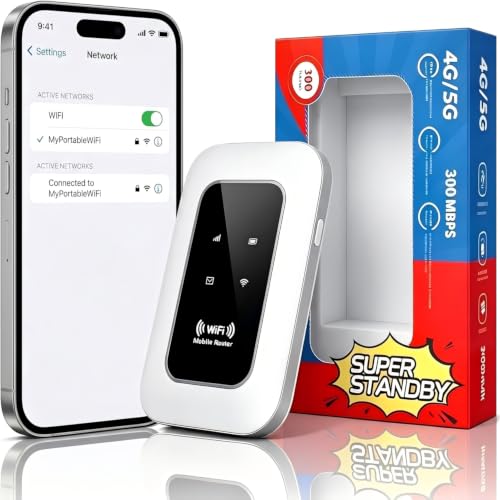
【For Travel】: Designed for mobility this portable wifi hotspot is your travel companion. whether you're on a road trip in a motorhome camping in the wilderness or commuting to work stay connected with ease. the rugged build and reliable performance ensure uninterrupted internet access in various environments meeting all your connectivity needs.
Weak Or No Signal
Poor or no signal strength often disrupts connectivity features. Remote areas or locations with limited network coverage can prevent the Tesla system from connecting to cellular services. For instance, streaming services like Spotify and map updates depend on a stable signal, which can fail in these conditions.
Software Bugs Or Glitches
Outdated or faulty software can impede proper system functioning. Connectivity-related software bugs might cause delays or failures in syncing the Tesla app, loading maps, or processing remote commands. Persistent software issues might appear after updates, emphasizing the importance of addressing these glitches promptly.
Hardware Malfunctions
Defective vehicle hardware can interfere with connectivity. Antenna problems, damaged connectors, or faults in the infotainment system may disconnect the Tesla from cellular networks. For example, malfunctioning hardware may lead to issues with receiving OTA updates or real-time road data.
Account Or Subscription Issues
Incorrect account settings or expired subscriptions can limit connectivity services. Tesla’s premium connectivity plan supports features such as live traffic visualization and music streaming. These features may become inaccessible if the subscription lapses or if the account lacks proper configuration.
Materials And Tools
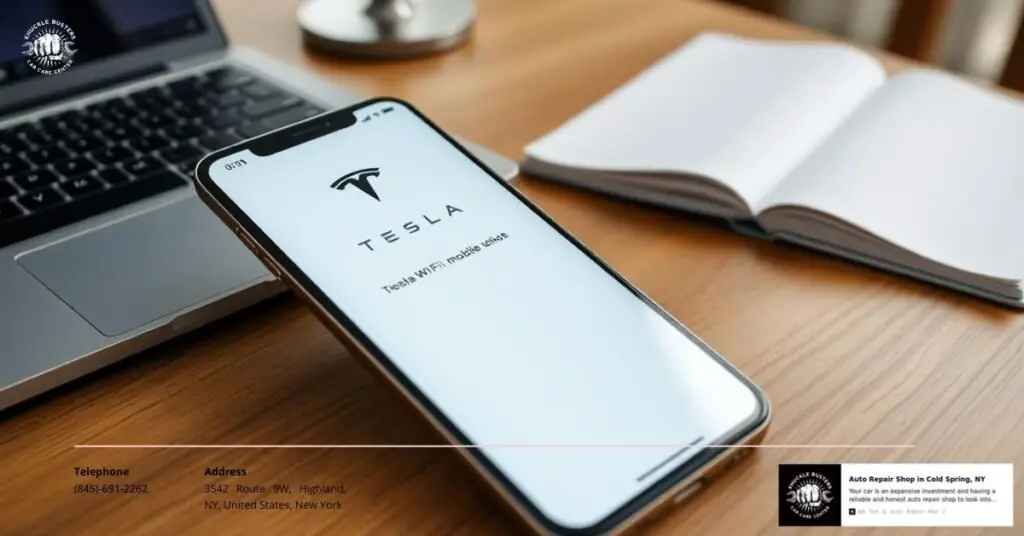
Addressing Tesla connectivity issues efficiently requires specific materials and tools to ensure troubleshooting steps proceed smoothly.
Recommended Products

𝐃𝐮𝐚𝐥-𝐁𝐚𝐧𝐝 𝐖𝐢𝐅𝐢 𝟔 𝐄𝐱𝐭𝐞𝐧𝐝𝐞𝐫 𝐰𝐢𝐭𝐡 𝟑 𝐆𝐛𝐩𝐬 𝐓𝐨𝐭𝐚𝐥 𝐁𝐚𝐧𝐝𝐰𝐢𝐝𝐭𝐡 - Extend your WiFi coverage with speeds up to 2404 Mbps (5 GHz band) and up to 574 Mbps (2.4 GHz band) for reliable 4K streaming and more. Performance varies by conditions, distance to devices, and obstacles such as walls.

𝐃𝐮𝐚𝐥-𝐁𝐚𝐧𝐝 𝐖𝐢𝐅𝐢 𝟔 𝐄𝐱𝐭𝐞𝐧𝐝𝐞𝐫 𝐁𝐨𝐨𝐬𝐭𝐞𝐫 𝐰𝐢𝐭𝐡 𝟏.𝟖 𝐆𝐛𝐩𝐬 𝐓𝐨𝐭𝐚𝐥 𝐁𝐚𝐧𝐝𝐰𝐢𝐝𝐭𝐡 - Extend your router's WiFi coverage with speeds up to 1201 Mbps (5 GHz) and 574 Mbps (2.4 GHz). Enjoy smoother and more reliable streaming, gaming, downloading with high-performance WiFi 6 range extender RE615X.

This wireless adapter supports wired CarPlay & Android Auto conversion. It works for vehicles with factory-wired CarPlay or Android Auto, compatible with iPhones (iOS 10+) and Android phones (Android 11+). Confirm your car has the original wired system before purchase.
Internet-Enabled Device
Using an internet-enabled device, such as a smartphone, tablet, or laptop, facilitates app management and account verification. Modern devices with up-to-date software versions work best for accessing Tesla systems and web resources.
Tesla Mobile App
The Tesla mobile app acts as the primary interface for many connectivity features. Ensuring the app is downloaded and installed, and signed in with accurate account credentials, is crucial. Updating the app to the latest version prevents compatibility issues and supports seamless syncing with the vehicle.
Wi-Fi Network Credentials (If Needed)
Wi-Fi network credentials enable a secure connection to reliable internet. Connecting the Tesla to a strong home or public Wi-Fi network is necessary for software updates, map downloading, and streaming functionalities. Keeping the credentials readily available eliminates delays during the setup process.
Step-By-Step Troubleshooting Guide
Addressing Tesla connectivity issues involves a systematic approach to resolve the most common problems efficiently. Follow these steps to regain seamless connectivity.
Recommended Products

Multi-Functions - Practical Multi-Functions OBD2 code reader features built-in OBD2 DTC lookup library, which help you to determine the cause of the engine light, read code, erase code, view freeze frame, I/M ready, vehicle information, data flow, real-time curve, get vehicle speed information, calculate load value, engine coolant temperature, get engine speed.

【Diagnose Check Engine Light in Seconds – No Mechanic Needed】The FOXWELL NT301 OBD2 scanner instantly reads & clears engine fault codes (DTCs) with one click. Simply plug into the 16-pin DLC port, turn ignition on, and get accurate results within seconds—No prior car knowledge required. Save hundreds on dealership fees by knowing exactly what’s wrong before you visit a shop. The #1 choice car scanner for DIYers and car owners who want to take control of their vehicle’s health

[Easy to Use—Work Out of the Box] + [FOXWELL 2026 New Version] FOXWELL NT604 Elite scan tool is the 2026 new version from FOXWELL, designed for car owners who want to figure out the cause of issues before fixing car problems by scanning common systems like ABS, SRS, engine, and transmission. The NT604 Elite obd2 scanner diagnostic tool comes with the latest software—no need to waste time downloading software first. Plug the scanner into the OBDII port with OBDII cable to start the diagnosis.
Step 1: Check Your Network Connectivity
Ensure the Tesla is connected to a stable network. Weak or no signal often disrupts streaming and map updates. Use a smartphone or another device to test the Wi-Fi or mobile hotspot in the car’s location. Adjust the vehicle’s position for a better signal if necessary.
Step 2: Restart Your Tesla System
Rebooting often resolves temporary glitches. Perform a soft reset by holding the two scroll wheels on the steering wheel until the Tesla logo appears on the screen. Allow the system to reload fully before testing the connectivity.
Step 3: Verify Account And Subscription Status
Access the Tesla mobile app or your Tesla account on a web browser to check for active subscriptions. Expired Premium Connectivity may limit access to features like live traffic or streaming. Ensure the account is properly synced with the vehicle.
Step 4: Update Your Tesla Firmware
Install the latest software updates to avoid compatibility issues. Connect the car to a strong Wi-Fi network and navigate to “Software” in the control menu. Any available updates will display a download and install prompt.
Step 5: Connect To A Different Network
Switch to a new network to rule out local connectivity issues. Use a mobile hotspot or move the car closer to another Wi-Fi source. Test whether the change improves streaming, app linking, or map functionality.
Step 6: Perform A Hard Reset
Conduct a hard reset if all other steps fail. Power off the vehicle completely through the settings menu, then wait two minutes before turning it back on. This action clears deeper system errors that a soft reset may not resolve.
Advanced Techniques For Resolving Connectivity Issues
When basic troubleshooting steps are insufficient, advanced methods can resolve persistent Tesla connectivity issues. These techniques target deeper software and system-level challenges.
Recommended Products


[How to claim your eSIM] After purchasing, please go to the "Jethro Mobile" homepage & fill out a request to get your eSIM QR code by email quickly.

1 Device = 2 Cameras, 2K Ultra HD Resolution and Color Night Vision: Dual lens security camera with 360° viewing angle coverage, each lens supports independent image splitting or stitching display. Allows you to see everything happening in the monitored area, easily grasp the overall situation, and completely eliminate monitoring blind spots. The camera has a built-in LED light that can be set to be motion-triggered or always on or off at night. When the light is turned on at night, the extraordinary colorful night view adds a touch of brilliance to every dark night.
Rebooting The MCU (Mobile Control Unit)
Rebooting the MCU can resolve persistent software glitches affecting connectivity. Start by holding down both scroll wheels on the steering wheel simultaneously. Keep them pressed until the Tesla screen turns off and the Tesla logo reappears. Allow the system to restart completely before testing connectivity features like navigation or streaming. This process clears temporary system errors without affecting stored data.
Factory Reset The Tesla System
Performing a factory reset reverts all settings to their original state, which can address unresolved connectivity challenges. Navigate to the “Safety & Security” menu in the vehicle’s settings, then select “Factory Reset.” Confirm the action after entering your Tesla account credentials. Keep in mind that this removes all personalized settings, saved locations, and paired devices, so backing up preferences is recommended before proceeding.
Contacting Tesla Support
Tesla Support provides assistance when system-level issues persist beyond user control. Accessing support channels via the Tesla mobile app or official website ensures direct communication. When contacting, prepare to share details about the issue, including any error messages and recent troubleshooting actions. In cases of hardware-related connectivity problems, support representatives may schedule a service appointment for further diagnostics or repairs.
Common Issues When Troubleshooting Tesla Connectivity
Troubleshooting Tesla connectivity challenges often reveals specific recurring issues. Addressing these effectively requires understanding their causes and applying targeted solutions.
Recommended Products
【Before Purchasing】-Please ensure your phone's frequency bands display band 12, 13, or 17 and that you receive at least 2 bars of signal outdoors. If not, the car cell phone booster may not function properly. (Check the product image for instructions on how to check frequency bands.)

Designed For Adventure, Weboost Drive Reach Overland Brings Together A Powerful Booster, Tough Outdoor Antenna, And Versatile Mounting Bracket

Multi-band Support: Covers 5G, 4G, 3G, and 2G across 617-5925 MHz
Unable To Reboot The Tesla System
Rebooting the Tesla system is a standard troubleshooting step, but some owners encounter difficulties during the process. This issue often arises from an incomplete or incorrect procedure. For example, pressing and holding both scroll wheels on the steering wheel may fail if released prematurely. Ensure the vehicle is stationary and parked with no external power input, such as during Supercharging sessions. Additionally, prolonged response times during the reboot could indicate deeper software or hardware faults that require Tesla Support intervention.
Tesla App Not Recognizing The Vehicle
Tesla app recognition problems can disrupt essential functions like remote locking and charging controls. Such issues often result from app-device syncing errors or account verification problems. Check whether the Tesla app is up to date and ensure your internet connection is reliable. Signing out of and back into the Tesla account frequently resolves these syncing disruptions. If the vehicle remains unlinked, confirming ownership status in the Tesla account settings and re-pairing the app with the car through Bluetooth may restore recognition.
LTE/Cellular Network Unavailable
Cellular network unavailability can disable navigation updates and streaming services. Common reasons include weak signal strength in remote locations or Tesla system software bugs. Relocate the vehicle to an area with better network reception and attempt to re-establish connectivity. If LTE issues persist, ensuring the vehicle’s software is current or reconnecting to a reliable Wi-Fi network could help mitigate temporary cellular network errors. Persistent failures might point to hardware problems, such as a malfunctioning antenna, which would need diagnosis by a Tesla service center.
Preventing Tesla Connectivity Issues In The Future
Avoiding connectivity challenges starts with proactive steps and regular maintenance. Adopting consistent practices ensures seamless functionality and enhances the driving experience.
Recommended Products

✅ ENHANCES 4G LTE SIGNAL & INTERNET SPEEDS: Boost your mobile internet performance! This antenna is specifically tuned for 700-2700MHz frequencies to capture a stronger, more stable cellular signal. Experience faster browsing, smoother video calls, reduced buffering, and clearer voice quality for all your connected devices on the road.

Compatible Carrier Network: Verizon, AT&T, T-Mobile, Sprint and etc; Frequency Range: 698-960 MHz, 1710-2170 MHz, 2300-2700 MHz; Gain: 9dBi; Direction: Omni-directional; Connector: SMA Male Connector;

Regularly Updating Tesla Software
Keeping Tesla software updated minimizes bugs and improves connectivity. Updates enhance compatibility with mobile devices, optimize app performance, and resolve existing glitches. Enabling automatic updates in the vehicle settings ensures quick access to the latest upgrades. Before starting an update, connecting the Tesla to a strong Wi-Fi network helps download the necessary files efficiently.
Monitoring Signal Strength And Wi-Fi Connections
Ensuring stable signal strength and reliable Wi-Fi access supports consistent connectivity. Checking network strength within the Tesla interface allows us to identify weak signals or disconnections. Parking closer to the home router or using a Wi-Fi range extender improves network availability. For over-the-air updates and streaming features, relocating the vehicle to a higher-coverage area provides uninterrupted access.
Maintaining A Valid Tesla Subscription Plan
Maintaining an active subscription plan ensures uninterrupted access to premium connectivity features like live traffic updates and media streaming. Confirming the subscription status via the Tesla app or website verifies account validity. Renewing expired plans promptly prevents disruptions and retains essential functionalities tied to the subscription.
Conclusion
Connectivity issues can be a hassle, but they don’t have to overshadow the joy of owning a Tesla. By staying proactive with updates, following troubleshooting steps, and seeking help when needed, we can keep our driving experience smooth and enjoyable. Let’s remember that a little maintenance goes a long way in ensuring our Tesla stays as connected as we are.
Recommended Products
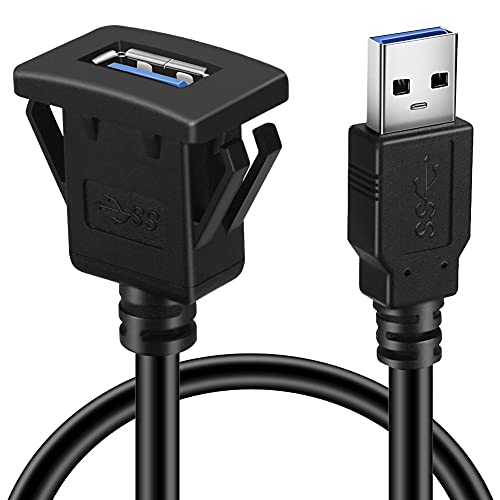
This batige square USB 3.0 panel flush mount cable design for car,boat and motorcycle.

【4K + 2.5K Dual Dash Cam】The front and rear dash cam captures crystal-clear footage in Ultra HD 4K (3840*2160P) for the front and 2.5K(2560x1600P) for the rear. This ensures that essential details, such as road signs and license plates, are easily visible. With a 170° wide-angle front lens and a 150° rear lens, the dual dash cam minimizes blind spots, providing full coverage to preserve critical evidence during incidents such as collisions

𝐍𝐞𝐱𝐭-𝐆𝐞𝐧 𝐖𝐢-𝐅𝐢 𝟕 𝐏𝐞𝐫𝐟𝐨𝐫𝐦𝐚𝐧𝐜𝐞 - Pair with a Wifi 7 router and achieve the benefits of Multi-Link Operation (MLO), Multi-RUs, 160 Mhz and 4K-QAM. Achieve optimized signal distribution throughout your entire home, and enjoy high performance on latest WiFi 7 devices.△
Frequently Asked Questions
Recommended Products
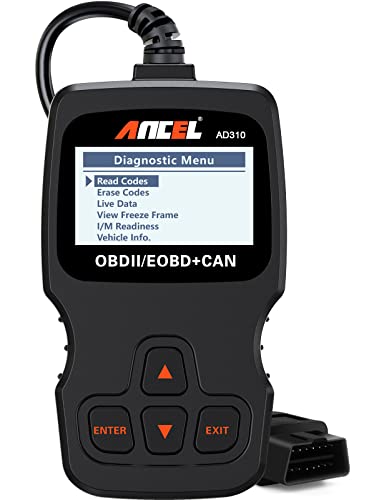
CEL Doctor: The ANCEL AD310 is one of the best-selling OBD II scanners on the market and is recommended by Scotty Kilmer, a YouTuber and auto mechanic. It can easily determine the cause of the check engine light coming on. After repairing the vehicle's problems, it can quickly read and clear diagnostic trouble codes of emission system, read live data & hard memory data, view freeze frame, I/M monitor readiness and collect vehicle information
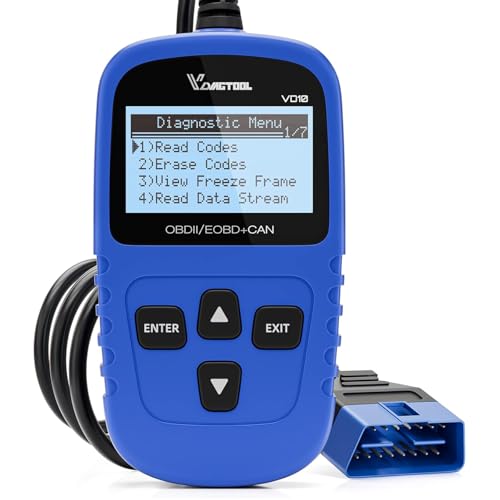
【A MUST-HAVE SCANNER TOOL FOR DIYERS】 - VDIAGTOOL VD10 car code reader is an incredibly useful, handheld obd2 scanner for each car owner or hobbyist, even for those with little to no experience when it comes to vehicle mechanics! Similar to a fixd car diagnostic tool, using this car diagnostic scanner is extremely easy. All you have to do is attach it to your car OBDII port and you can diagnose car problems in seconds! Read Codes (DTCs); Clear Codes; Live Data; View Freeze Frame; I/M Readiness; Vehicle Information.

The only official protective EVA bag for ANCEL AD310, AD410, AD530, VD500, VD700, HD601, JP700, BD310 FX2000 FX3000 OBD2 scanner and BST200, BA101, BM200 PRO battery tester. (Scanner and accessories in the photos are not included).
What are the common connectivity issues Tesla owners face?
Tesla owners often face connectivity problems such as app malfunctions, navigation errors, streaming difficulties, weak signals in remote areas, outdated software bugs, and hardware glitches like antenna faults or infotainment issues.
How can I resolve Tesla connectivity issues?
You can resolve connectivity issues by checking network connectivity, restarting the system, verifying account and subscription status, updating Tesla firmware, connecting to a different network, or performing a hard reset. If problems persist, contact Tesla Support.
Why does my Tesla app fail to sync with my vehicle?
This issue may be due to account verification problems, outdated app software, or network instability. Try signing out and back into the app, ensuring your app is updated, and checking your internet connection.
How can weak signal areas impact Tesla features?
In areas with weak or no cellular signal, Tesla features like navigation, streaming, and map updates may not function properly. Relocating to a better-covered area can often fix these disruptions.
How do I update Tesla’s firmware?
To update Tesla firmware, ensure your vehicle is connected to a strong, stable Wi-Fi network. Enable automatic updates in the Tesla settings, and download and install updates as prompted.
What tools do I need to address Tesla connectivity problems?
You’ll need an internet-enabled device (smartphone, tablet, or laptop), Wi-Fi credentials for stable network access, and the Tesla mobile app installed and updated for app management and troubleshooting.
When should I contact Tesla Support for connectivity problems?
Contact Tesla Support if issues persist after troubleshooting, such as unresolved software or hardware malfunctions. Provide detailed information about the problem to assist with diagnosis.
Can a factory reset resolve Tesla’s connectivity issues?
Yes, performing a factory reset reverts all settings to their original state, which can fix unresolved connectivity challenges. However, it should be a last resort after other troubleshooting steps.
How can I prevent Tesla connectivity issues in the future?
To prevent future issues, keep your Tesla software updated, enable automatic updates, ensure a strong Wi-Fi connection, monitor signal strength, and maintain an active subscription for premium features.
What should I do if LTE or cellular networks are unavailable in my Tesla?
If LTE or cellular networks are unavailable, move to an area with better signal reception. Ensure your Tesla software is updated and connected to Wi-Fi if possible to restore functionalities.